Copilot has become an indispensable tool for developers — diagnosing issues, fixing errors, generating tests, and even helping new team members understand unfamiliar codebases. However, large language models utilised by Copilot are trained on publicly available data up to a fixed cutoff date. They don’t have access to your proprietary APIs, internal documentation, or bespoke UI libraries, nor do they automatically know about frameworks or tools released after their training period.
As a result, their usefulness drops when working with code or systems that exist outside their training data. Generally this manifests itself with Copilot hallucinating — inventing endpoints, props, or components that don’t exist, making suggestions or changes which result in code that fails to compile or work.
This limitation can be addressed by using Model Context Protocol (MCP).
MCP simply put - allows Copilot to interact with your proprietary APIs, databases, internal documents/systems, libraries and provide context to LLM such as Claude, Open AI. It is an open standard that allows clients like Copilot, Claude and others to communicate in a standard way with servers which can provide context from a variety of sources.
Instead of guessing, Copilot can ask for context through MCP:
This turns Copilot from a code guesser into a context-aware collaborator — one that reasons based on your actual code, not just its training data.
To illustrate how MCP enhances the Software Development Lifecycle, we’ll build a simple Contacts Management Application — a React app that interacts with an existing Contacts API. For the sake of this demonstration, let’s assume this API was developed by another team.
The UI will use components from Base UI, a relatively new third-party component library we’re unfamiliar with — much like an internal design system in many enterprises.
This setup mirrors a common real-world scenario: you join a new team or inherit a project built on APIs, tools, or libraries you’ve never used before.
Without MCP, Copilot has no visibility into these systems — it can only guess. With MCP, Copilot gains instant access to that missing context, enabling it to generate accurate, grounded code.
By exposing project-specific information to Copilot through MCP, developers can query and use APIs and UI components as if they had written them.
For example, Copilot can use MCP to retrieve:
TheOpenAPI specification of the Contacts API — so it knows the correct URLs, parameters, and response schemas.
The MDX documentation for Base UI components — so it knows what components exist and how to compose them into pages.
Even if the developer has never seen this codebase before, they can now ask Copilot:
And using that real context, Copilot can go beyond answering — it can generate the code itself.
To make this demonstration work end-to-end, I set up a simple MCP server and configured VS Code to connect to it.
The MCP server acts as a bridge between Copilot and my local project context — exposing a few lightweight tools that provide structured information about the APIs, UI components, and design tokens used in the app.
Here are the three tools I configured:
#get_baseui – Returns the documentation and props reference for all Base UI components. This allows Copilot to understand how to compose layouts and forms correctly using the Base UI library.
# get_contacts – Provides the OpenAPI specification for the Contacts API, giving Copilot visibility into endpoints, parameters, and response shapes.
# get_design_tokens – Exposes the design tokens from the design system (colors, spacing, typography), enabling Copilot to generate styles that align with the project’s visual language.
With VS Code connected to the MCP server, Copilot can now query these tools directly. Instead of guessing how the API works or which components to use, it retrieves the right context — resulting in accurate, working code that matches the project’s actual implementation.
Here’s what a typical flow looks like:
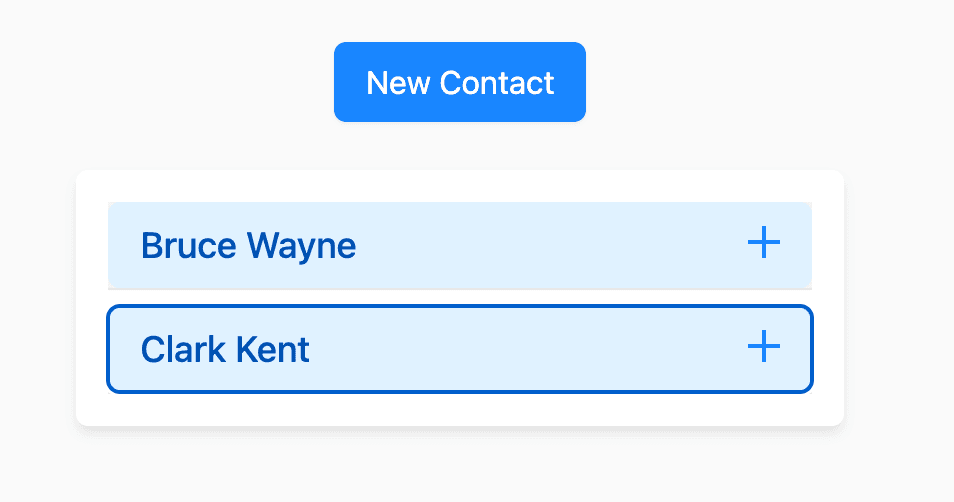
Build a Contacts list component. From #get_contacts use the list contacts endpoint and React Query to fetch the data. Using #get_baseui display the results in a BaseUI Accordion component with name for headings and the remaining data inside the accordion. Add a loading and error state.
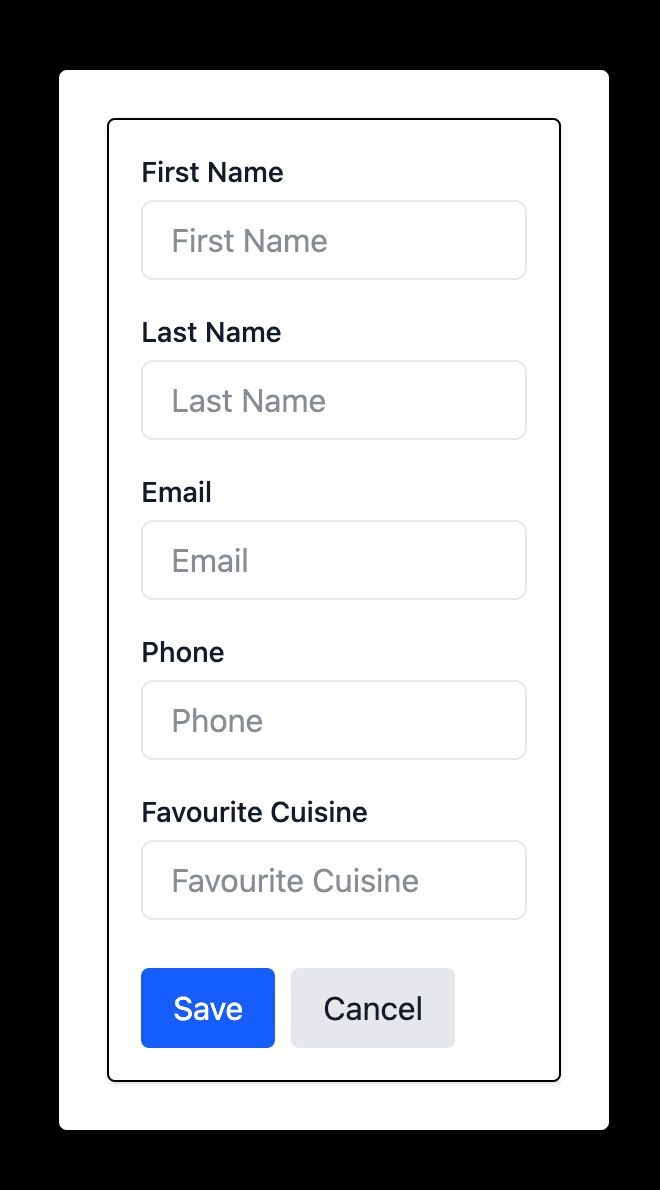
Build a Form component for creating New Contacts. The form should use Form, Field, Input from #get_baseui and allow users to create new contacts and refetch the list on success. Add a 'New Contact' button above the list of contacts that opens the new Contact Form.
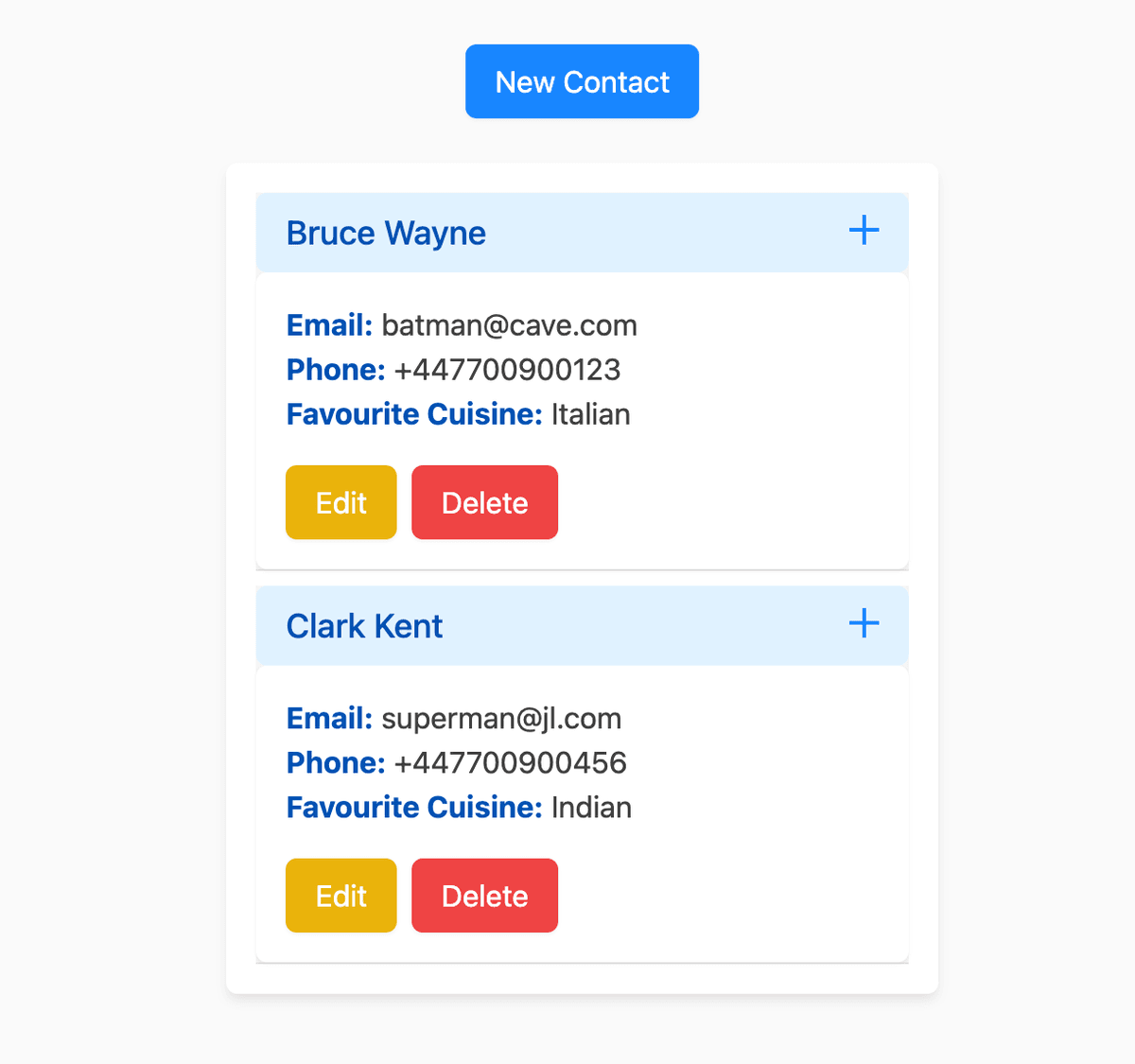
Add an 'Edit' button for each contact in the Contact List component. Clicking it should open the same form as the Create Contact form, prefilled with contact data, and update the contact using the `PUT /contacts/:id` endpoint.
Add a 'Delete' button for each Contact. On click, confirm with the user. If confirmed, call `DELETE /contacts/:id` and refetch the list.
Update the Contacts list component to use design tokens from the Design System MCP server for spacing, colors, and typography. Use #get_design_tokens
Update the Create Contacts Form component to use design tokens from the Design System MCP server for spacing, colors, and typography. Use #get_design_tokens - don't replace tailwind styles. Rather adjust tailwind config to match the design tokens
refactor the style, layout for the form to create/edit contacts. Ensure you're consistent with design tokens from #get_design_tokens
This results in the following
The Model Context Protocol (MCP) represents a major step forward in how AI integrates into the Software Development Lifecycle (SDLC). By giving tools like Copilot access to proprietary APIs, internal documentation, and custom UI libraries, MCP injects real, project-specific context into every stage of development — transforming the way teams build software:
Requirements & Design: MCP helps translate business logic and design documentation into actionable, context-aware suggestions, bridging the gap between design and code.
Implementation: Developers can code faster and more accurately with Copilot that truly understands internal APIs, components, and architecture.
Testing: AI can generate realistic test cases and mocks directly from your live API specifications, improving coverage and reliability.
Deployment & Maintenance: With access to real system knowledge, Copilot can assist with debugging, configuration, and even incident analysis — reducing downtime and human error.
In short, MCP turns Copilot into a trusted collaborator across the entire SDLC, not just a coding helper. It ensures that AI assistance is context-aware, accurate, and aligned with how your organization actually builds software.
As teams adopt MCP, they’re not just improving developer productivity — they’re redefining collaboration, accelerating delivery, and closing the gap between human expertise and AI capability. That’s how MCP truly empowers developers — and the entire software development lifecycle.